

Create a client
Add a new client whenever you want to start tracking a client’s contact information, addresses, jobs, quotes, or invoices. A client record is the anchor for every piece of work you do for that person or business.
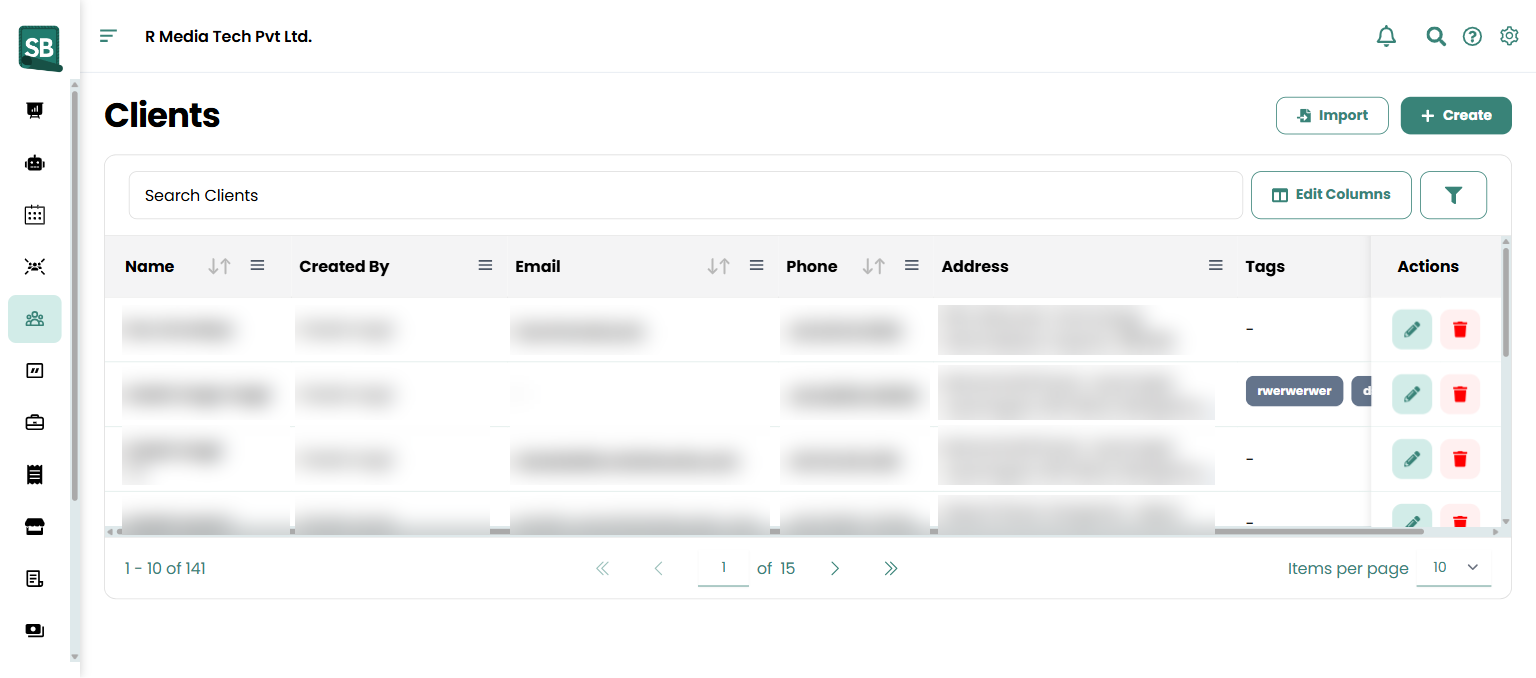
- Click Clients in the left sidebar.
- Click + Create in the top right.
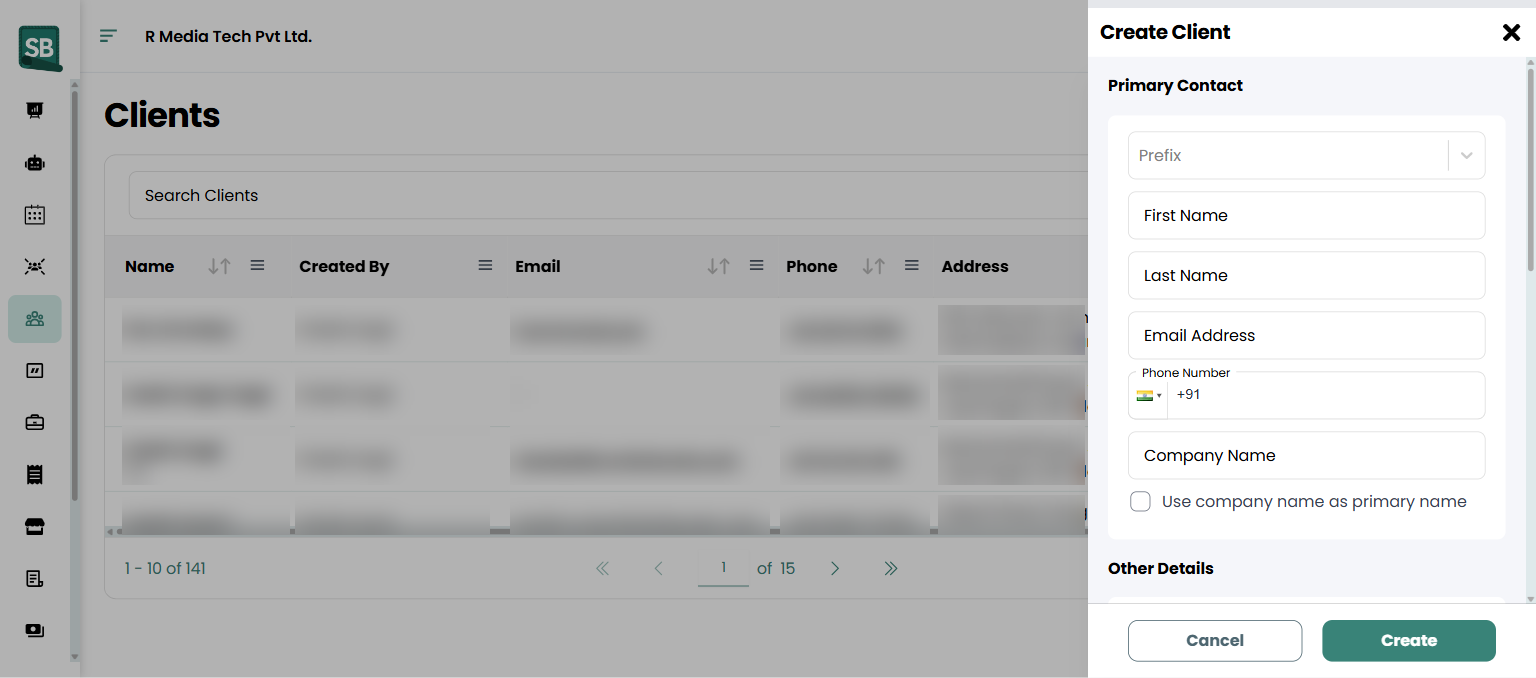
- Fill in the contact details under Primary Contact:
- First Name and Last Name
- Email Address (recommended so you can send invoices and quotes)
- Phone Number (optional, with country code)
- Company Name — for business clients (builders, property managers, designers, contractors)
- Tick Use company name as primary name so the company shows in lists instead of the individual’s name.
- Under Other Details, add optional context:
- Tags — labels like
VIP,Commercial, orRepeat Client(press Enter after each one). - Address Details — full install address (autofill search or manual entry).
- Tags — labels like
- Under Tax Details, optionally set a Tax Rate to override the property’s default for this client.
- Click Create.
What happens next
Section titled “What happens next”- The new client appears at the top of your Clients list.
- You can now create quotes, jobs, and invoices for them directly from their profile.
- If you have QuickBooks connected, you can sync the client to QuickBooks from their profile page.
What’s the difference between a client and a lead?
A lead is someone who’s shown interest but hasn’t bought yet — they go in the Leads tab. A client is someone you’re actively working with or have done work for. When a lead is ready to commit, convert them to a client so their details and history carry over.
Should I use the individual’s name or the company name as the primary?
For commercial clients (a contractor, a property manager, an interior designer), check Use company name as primary name so the business appears in your lists. For homeowners, leave it unchecked so you see the individual’s name.
Can a client have more than one address?
Yes. Each client can have multiple properties (install addresses) — useful for landlords with multiple rentals, property managers, or commercial clients with several locations. Add additional properties from the client’s profile page. See Manage client properties.
Can a client have more than one contact person?
Yes — use Additional Contacts on the client profile to add billing contacts, on-site contacts, or any other people you communicate with at the same client. See Manage sub-clients and additional contacts.
What if I have hundreds of clients to add?
Use Import clients from a CSV file instead of adding one at a time. The importer accepts a standard CSV with name, email, phone, company, and address columns.
Can I delete a client?
Yes, but if the client has any linked jobs, quotes, or invoices, you’ll need to delete or reassign those first. For long-time clients you no longer work with, archiving is usually safer than deleting — it preserves the history without cluttering active lists. See Edit or delete a client.
Why does my client get flagged as a duplicate?
Service Buddy uses email as a unique key per client to prevent accidental double-entry. If you get a “already used” error, search your Clients list for that email — you probably already have a record. Edit the existing one or use a different email.
Why isn’t my new client showing in the list?
Check your filters first — tag, status, or archived filters may be hiding them. Clear all filters at the top of the Clients list and the newest client should appear at the top.