

Schedule a job for a later date
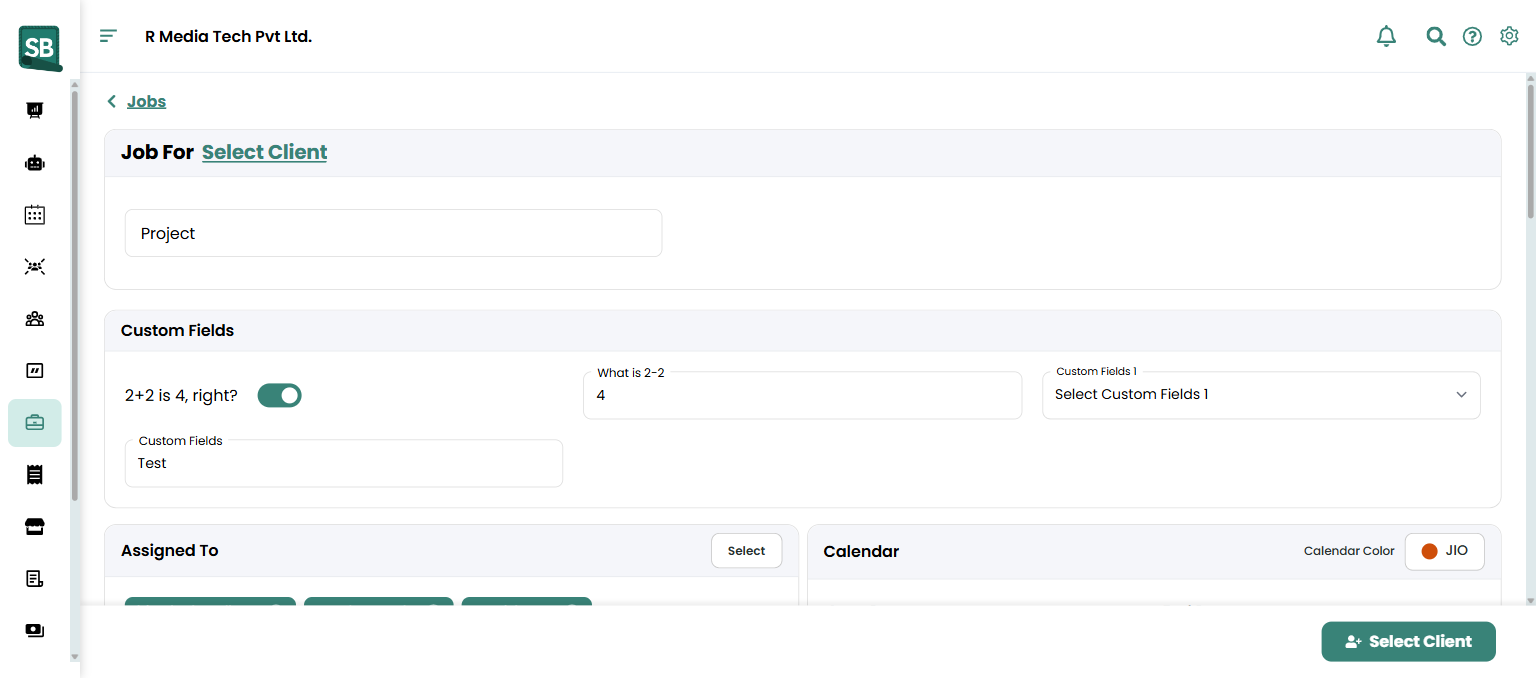
You can create a job now and perform the work later. Scheduling puts the job on the team calendar and — if assigned — adds it to the installer’s task list automatically.
Schedule when you create a job
Section titled “Schedule when you create a job”- When creating a job, in the Calendar section set the Start Date, End Date, Start Time, and End Time to the future.
- In Assigned To, pick one or more team members if you know who’s doing the work.
- Click Save at the bottom.
The job’s status is Open and it appears on the team calendar on the scheduled date.
Schedule later — commit to a client now, plan timing later
Section titled “Schedule later — commit to a client now, plan timing later”If you want to start a job without committing to dates:
- Create the job as usual.
- Check Schedule Later instead of entering dates.
- Click Save.
The job stays Open with no dates. You can add dates anytime by editing the job.
Change the scheduled time
Section titled “Change the scheduled time”- Open the job from the Jobs list (click the pencil icon in the Actions column).
- Update Start Date / End Date / Start Time / End Time in the Calendar section.
- Click Save at the bottom.
The job moves on the team calendar to the new time slot.
View scheduled jobs
Section titled “View scheduled jobs”- Jobs list — filter by status = Open to see all active jobs, or use the calendar to see dated jobs.
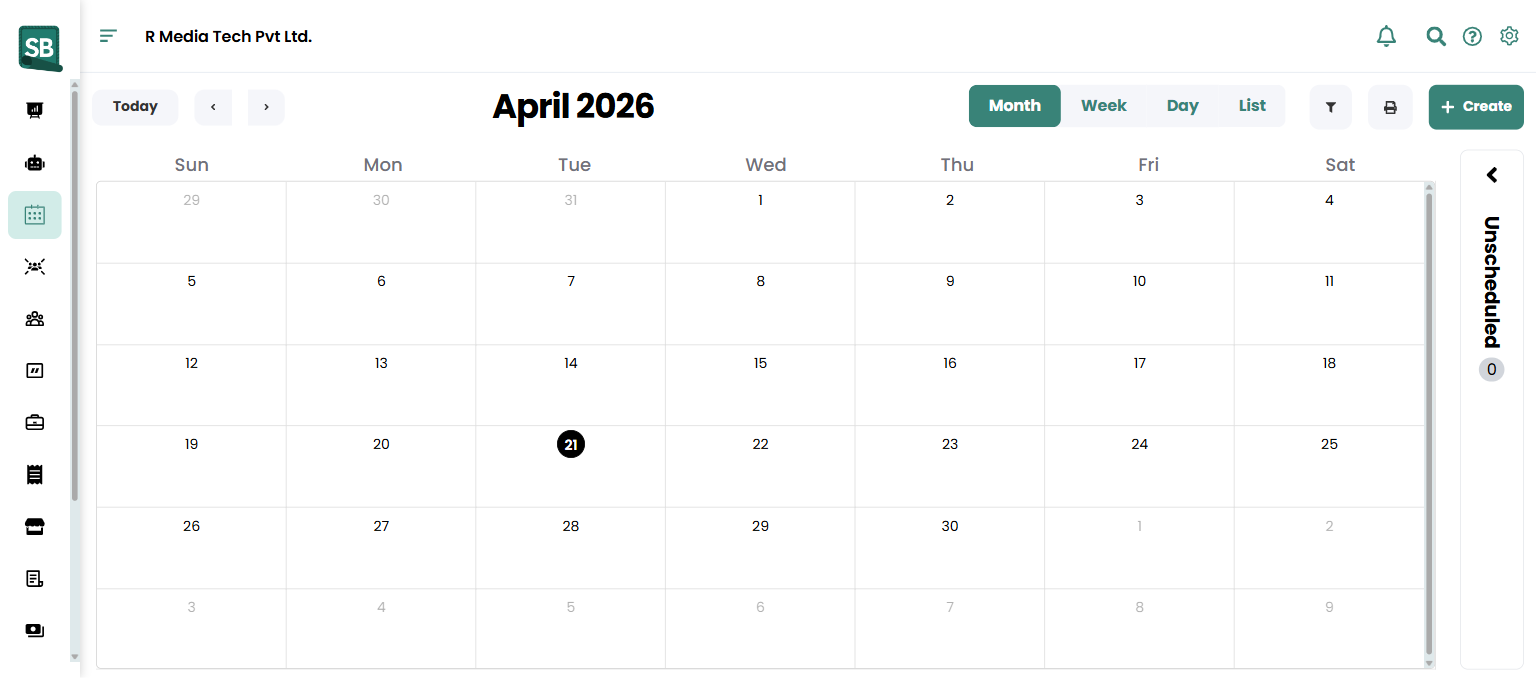
- Calendar view — click Calendar in the sidebar to see all scheduled jobs and tasks in day/week/month view.
What’s the difference between Schedule Later and just leaving dates blank?
They’re the same thing — Schedule Later is a checkbox that explicitly tells Service Buddy you intend to add dates later. The job goes into your Unscheduled queue and stays out of the calendar until you fill in dates.
Will Service Buddy stop me from double-booking an installer?
No — double-bookings aren’t blocked automatically. Always check the calendar view before assigning, or filter by employee to see what they already have on. Some retailers run a quick weekly review to catch overlaps before they become problems.
Can I drag a job on the calendar to reschedule?
Yes, on a desktop — open the Calendar view, click and drag the job to the new time slot, and the dates update. Useful for last-minute reshuffles when a client cancels or reschedules. On a tablet or phone, dragging is turned off; open the job and edit its Start/End dates and times instead.
How do I block off team time (vacation, training, etc.)?
Create a job (or task) on the calendar with no client and a clear name (Vacation — Mike, Team training). Assign it to the relevant employees so it shows up against their availability. There’s no separate “time off” record — most retailers use the calendar itself as the source of truth.
What if a measure or install runs over?
Edit the job and extend the End Date or End Time. The calendar updates immediately, and any subsequent jobs assigned to the same installer become visible if there’s a conflict.
Can clients see when their install is scheduled?
Not through the calendar directly. The portal shows the install date if it’s been set on the job linked to a quote or invoice they can see. Most retailers also confirm the install window with a message or call a day or two before.
Why doesn’t my scheduled job appear on the calendar?
Most often it’s because Schedule Later is checked or dates were saved as blank. Open the job, set proper Start and End times, and save. It should appear on the calendar within a few seconds.