

Navigating the dashboard
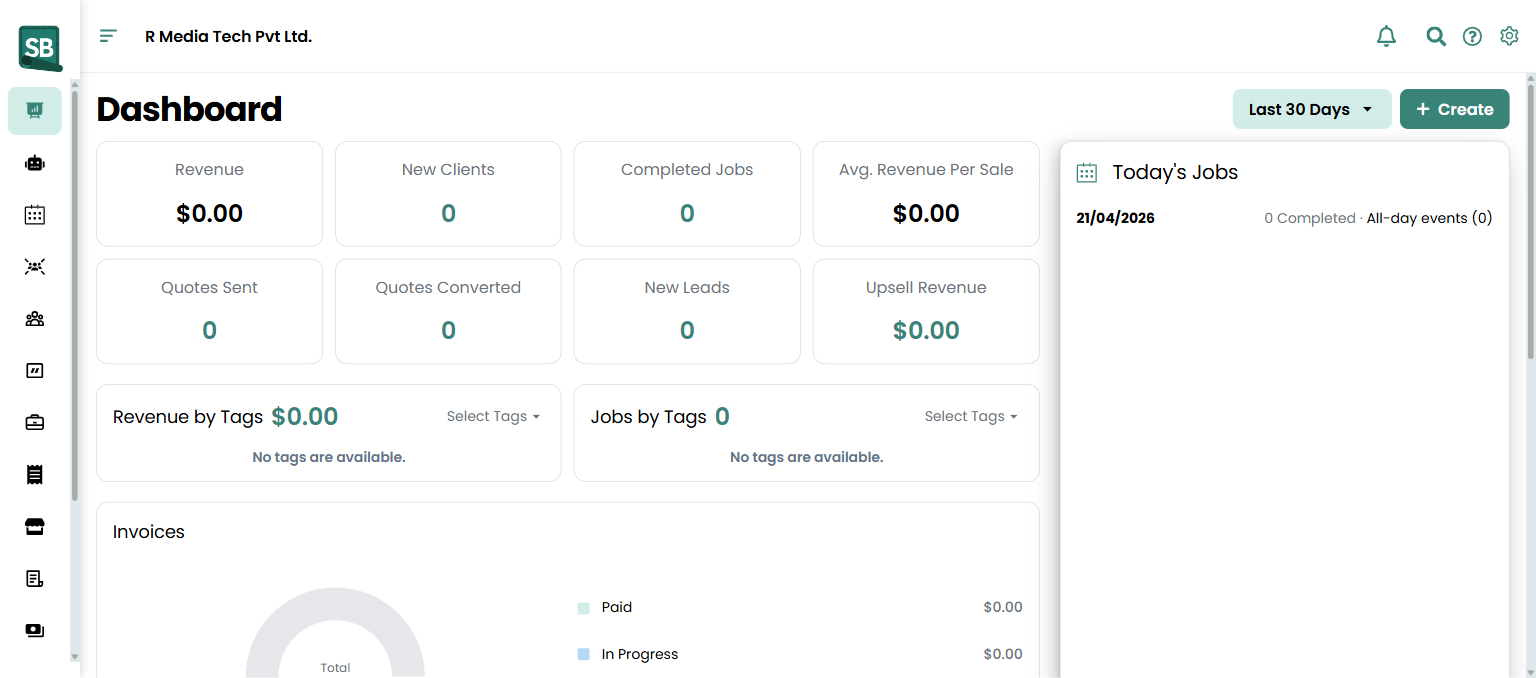
The Service Buddy dashboard centers on a left sidebar with everything you’ll work with — leads, clients, quotes, jobs, invoices, payments, inventory, reports — and a top bar for global search, quick-create, and notifications. This article walks through where each piece lives.
The top navigation bar
Section titled “The top navigation bar”The bar across the top stays visible everywhere. From left to right:
Company name and sidebar toggle
Section titled “Company name and sidebar toggle”The top-left shows your company name (workspace name) — for example, RJ10 Rugs. The hamburger icon (three horizontal lines) right next to it collapses and expands the sidebar. Useful on laptop screens when you want more room for the main content.
Search
Section titled “Search”Click the magnifying-glass icon to open global search (the box reads Search Anything…). Start typing and results appear as you go, pulled from across your account:
- Clients
- Quotes
- Jobs
- Invoices
- Purchase Orders
- Products
Results are grouped into tabs — All plus a tab for each type that has matches, with a count next to each. Click a tab to narrow the list. Each result shows its status (for example, a quote as Approved or Draft, an invoice as Paid or Pending) so you can tell records apart at a glance. Use the ↑ / ↓ arrow keys to move through results and Enter to open the highlighted one, or just click it.
BuddyAI shortcut
Section titled “BuddyAI shortcut”The sparkle (✦) icon opens BuddyAI from anywhere in the app — handy when you want to draft a message, summarize a job, or ask a question without leaving the page you’re on.
Quick-create button
Section titled “Quick-create button”The + Create button is a shortcut for creating the most common records without navigating away. The dropdown is, top to bottom:
Notifications
Section titled “Notifications”The bell icon shows alerts about jobs, payments, and team activity. A number badge on the bell shows how many unread notifications you have. Click the bell to open the panel — each notification shows the client name, phone, message, and timestamp. Click a notification to jump to the relevant record, or click Mark all as read at the bottom to clear them all.
Gear menu
Section titled “Gear menu”Click the gear icon in the top-right for, in this order:
- Settings
- Live Help
- Account And Profile
- Manage Team
- Sign Out
The left sidebar
Section titled “The left sidebar”The sidebar is your primary navigation and stays visible everywhere in the app. From top to bottom:
- Dashboard — your daily overview. Widgets: Revenue, New Clients, Completed Jobs, Average Revenue Per Sale, Quotes Sent, Quotes Converted, New Leads, Upsell Revenue, Revenue by Tags and Jobs by Tags (filterable by your own tags), an Invoices breakdown (Paid / In Progress / Past Due / Outstanding), a Payments breakdown by method, plus a Today’s Jobs panel on the right.
- Buddy AI (BETA) — the AI assistant that answers questions about your data and helps you draft messages, notes, and follow-ups.
- Calendar — team scheduling in Month, Week, Day, or List view. The Unscheduled jobs panel on the right lists jobs you’ve created but haven’t put on the calendar yet — drag them onto a date to schedule.
- Leads — prospects and pipeline before they become paying clients.
- Clients — all client records, contact details, and service history.
- Quotes — quotes sent, accepted, or pending.
- Jobs — active jobs and job history.
- Purchase Orders — vendor orders and receiving.
- Vendors — your mill and supplier contacts.
- Invoices — invoices created and outstanding.
- Payments — payments recorded against invoices.
- Inventory — expandable. Contains Products (your stocked items — carpet, padding, LVP, hardwood, etc.) and Samples (Coming Soon).
- Reports — built-in and custom reports. Visibility depends on access level (see the FAQ).
- Reviews — client reviews and your responses.
- Settings — all account configuration. Also available under the gear icon in the top-right.
The main content area
Section titled “The main content area”Everything you click in the sidebar opens in the main area. Most screens share the same layout:
- Page title and breadcrumbs at the top.
- Action buttons (e.g. + Create, Export) in the top-right.
- Filters and search for narrowing the list.
- The list or detail view itself, which you can sort by any column.
On mobile
Section titled “On mobile”On a phone or tablet, the sidebar collapses to a hamburger menu (the three-line icon in the top-left). Tap it to open the full menu. Everything else — search, BuddyAI shortcut, quick-create, notifications, gear menu — sits in the top bar like on desktop. Useful for installers and measurers at job sites who need to open a job, add notes, or upload photos on the go.
Where do I find Settings?
Two places — both go to the same screen: at the bottom of the left sidebar, or under the gear icon in the top-right corner.
Why can’t I see Reports in my sidebar?
Reports is only available to Admin, Admin Staff, and Office Staff access levels. Field Worker Staff and Installers don’t see Reports. If you need access, ask your admin to update your role — see Assign roles and permissions.
How do I make the sidebar smaller on my laptop screen?
Click the hamburger icon next to your company name in the top-left. The sidebar shrinks to icons only. Click it again to expand.
Can I customize what shows on my Dashboard?
Not currently. The widgets are the same for everyone with Dashboard access. Use the time-window filter at the top right (defaults to Last 30 Days) to switch the date range, and use the Select Tags dropdowns on the Revenue by Tags and Jobs by Tags widgets to slice those numbers.
What’s the Unscheduled jobs panel on the Calendar?
Jobs you’ve created but haven’t put on the calendar yet show up there. Drag them onto a date to schedule them. Useful when a sales associate creates a job but the install date depends on material arrival.
Are there keyboard shortcuts?
In global search, you can use the ↑ / ↓ arrow keys to move through results and Enter to open the highlighted one (Esc closes the search box). Elsewhere, navigation is click-based — open the sidebar, top bar, or gear menu to get where you need to go.
That’s the tour. From here, the typical first move is creating your first client (or importing a list from a spreadsheet) — see Create a client.