

Create a purchase order
A purchase order (PO) is a formal request to a vendor to supply products, materials, or equipment. Service Buddy tracks POs from creation through receipt so you always know what’s on order and when it’s expected.
Before you start
Section titled “Before you start”The vendor you’re ordering from needs to exist in Service Buddy. If not, add them first. See Add a vendor.
Create a PO from scratch
Section titled “Create a PO from scratch”- From the left sidebar, click Purchase Orders, then click + Create in the top right.
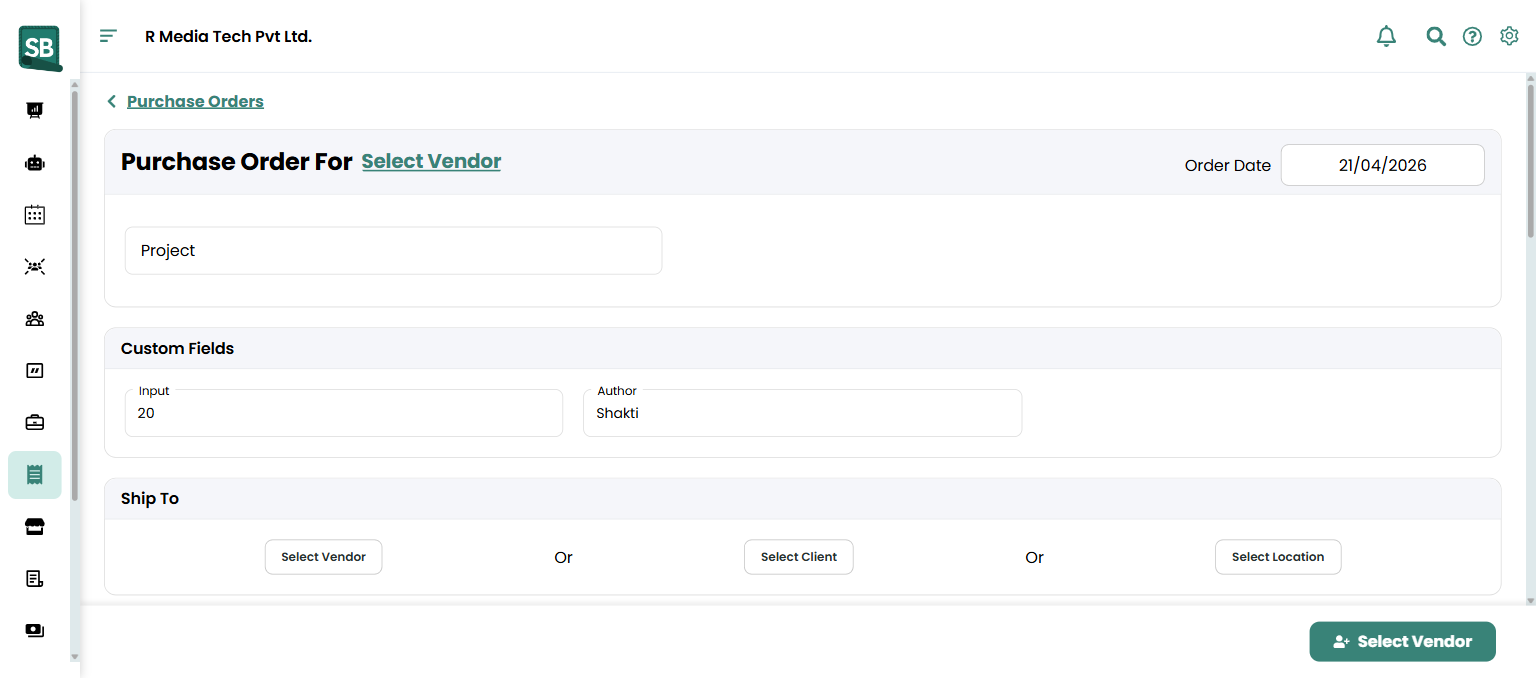
- Click Select Vendor in the page heading to choose the vendor you’re ordering from.
- Enter a Project name describing the order (for example,
Smith — Living Room Carpet (Stainmaster),Patel — Hardwood (Bruce Oak),Garcia — Tile (Daltile), orQ2 Padding Restock). - Set the Order Date (defaults to today).
- Under Ship To, select where the goods should be delivered: Select Vendor, Select Client, or Select Location.
- Add line items by clicking + Add Line Item and picking a product or material from your catalog. Set the Quantity and Unit Cost for each.
- (Optional) Fill in any Custom Fields that appear on the form.
- Click Create at the bottom.
Create a PO from a quote, job, or invoice
Section titled “Create a PO from a quote, job, or invoice”If a client job needs parts you don’t have in stock:
- Open the quote, job, or invoice.
- Click More Actions in the top-right → Create Purchase Order.
- Line items transfer over automatically — keep the ones you need to order.
- Pick a vendor and click Create.
What happens next
Section titled “What happens next”- The PO is saved with an Open status.
- You can send the PO to the vendor by email directly from the PO detail page.
- Once the vendor acknowledges the order, approve it internally. See Approve or reject a purchase order.
- When goods arrive, mark the PO received to update inventory. See Receive stock from a purchase order.
What’s the difference between an open PO and a quote?
A quote is your offer to a client for work. A purchase order is your order to a vendor for materials. Both have line items and totals, but they flow in opposite directions: quote = money in, PO = money out. POs feed into your inventory once received.
Should I create a PO for every job, or batch them?
For special-order materials tied to a specific install (custom-bound area rug, mill-direct broadloom, specialty hardwood lot, special-order tile for a quoted job), create a PO per job — easier to track which roll, carton, or box is for which client. For stock items (standard padding, underlayment, common backing tape, thinset, grout), batch them weekly or monthly to consolidate freight.
Can I create a PO directly from a quote?
Yes. Open the quote and use More Actions → Create Purchase Order. Line items carry across, you pick the vendor and quantities, and Service Buddy links the PO to the originating quote so you can trace the materials chain.
How do I handle drop-ship orders direct to the install site?
When creating the PO, choose Select Client under the Ship To field and pick the client and property. The PO carries the install address as the delivery destination — useful when the mill ships directly to the job site instead of your warehouse.
Why can’t I edit a PO after it’s marked Completed?
Completed POs are locked to preserve the inventory and accounting record. If you need to correct a completed PO, contact support — they can adjust it on a case-by-case basis. Better practice is to verify line items and pricing before completing.
How does receiving a PO affect inventory?
When you mark a PO Received, on-hand quantities for those items go up by the received amount. Partial receipts are supported for orders that arrive in multiple shipments (very common with mill-direct broadloom, distributor freight, and multi-lot hardwood or tile shipments). See Receive stock from a purchase order.
Can I send the PO to the vendor by email from Service Buddy?
Yes — open the PO detail page and use the email/share controls. Service Buddy generates a clean PO PDF with your branding, the vendor’s account number, and all line items.