

Add a deposit to an invoice
Deposits let you collect money upfront and apply it against a future invoice. Service Buddy tracks deposits separately from payments so you always know what’s owed and what’s been prepaid.
When to add a deposit
Section titled “When to add a deposit”- A client prepaid before work started.
- A deposit was collected at quote approval but wasn’t automatically carried over.
- You want to log a retainer that applies to future invoices.
Add a deposit directly to an invoice
Section titled “Add a deposit directly to an invoice”-
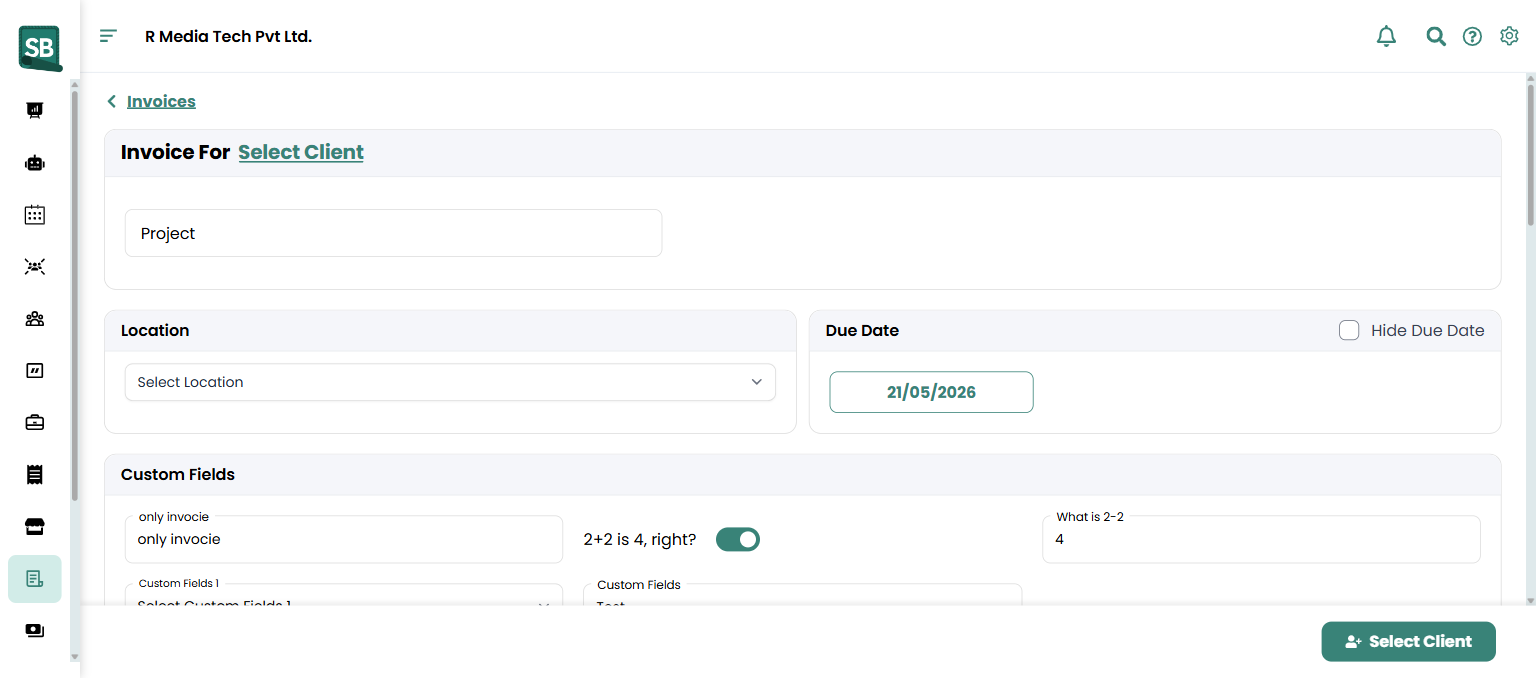
Open the invoice from the Invoices list (click the pencil icon in the Actions column).
-
Scroll to the Deposit section and click + Add Deposit.
-
The Add Invoice Deposit dialog opens. Use the link at the bottom to switch between Collect Via Service-Buddy and Collect Offline.
To take the money now through BuddyPay, pick how it’s being paid:
- Stored Payment — charge a card or bank account already on file for this client.
- New Card — enter card details to charge.
- Terminal — send the amount to a card terminal and have the client tap, insert, or swipe. Choose the Terminal Device first.
Enter the Amount ($) and click Collect.
To record a deposit you’ve already taken, click Collect Offline:
- Select a Payment Method: Card, Cash, Check, Money order, Bank transfer, or Other.
- Enter the Amount ($).
- Enter the Transaction date.
- Optionally add Details (e.g. a reference or note).
- Click Add.
-
Click Save to save the invoice.
What happens next
Section titled “What happens next”- The deposit amount is subtracted from the invoice total.
- The Remaining Amount owed updates instantly.
- If the deposit covers the full invoice, the invoice is marked Paid automatically — and if the invoice is tied to a job, that job closes too, so you’re not left tidying up a job that’s already been paid for in full.
- The deposit appears on the PDF and client-facing invoice so there’s no confusion about what’s owed.
- If a card is declined, the deposit shows Payment Failed and you can use Retry Payment rather than starting over.
What’s the difference between a deposit and a payment?
Both reduce the Remaining Amount owed on an invoice, but they serve different purposes. A deposit is money taken upfront — before the work is finished, before the full invoice is generated, or as part of a quote approval. A payment is the client paying down the invoice itself, usually after the work is done. Service Buddy tracks them separately so you can always see what was prepaid versus paid against the final bill.
Can I add a deposit before the invoice is finalized?
Yes — open a draft invoice, scroll to the Deposit section, and add the deposit there. The deposit applies as soon as it’s recorded, even while the invoice is still being edited.
Can I take a deposit by card without a payment link?
Yes. If the client is standing in front of you, use Terminal and have them tap or insert at your card reader. If they’ve paid you before, Stored Payment charges a card already on file. New Card lets you key the details in.
Can I add another deposit while one is still processing?
Yes. A terminal payment waiting for the client, or a bank payment still settling, no longer blocks the invoice — you can take another deposit or payment against it in the meantime. Each one is tracked separately, so nothing is double-counted when the first finishes.
The client paid me but I don’t know which invoice it’s for yet. What do I do?
Take it on the client’s record instead. It sits on their available balance until you decide what it covers. See Collect a payment from a client.
What if I already collected the deposit at quote approval?
Then there’s nothing to do here. Quote-approval deposits flow through automatically when you convert the quote to a job and invoice from the job. You only need to add a deposit manually for ad hoc situations — a retainer, an in-person check, a deposit that wasn’t tied to a quote.
Can I add multiple deposits to one invoice?
Yes. Repeat the Add Deposit flow for each one. Each deposit is recorded separately with its own date and method, and the Remaining Amount updates each time.
Can I refund a deposit that’s been applied to an invoice?
Yes — open the invoice, click More Actions → Refund, and choose the deposit you want to refund. Same 120-day rule as any BuddyPay refund. See Issue a refund.
Where do I see all the deposits a client has paid?
On the invoice itself, deposits are listed in the Deposit section with their amounts and dates. For everything a client has paid you across all their invoices and quotes, open their record and look at the Client Balance card — see Apply a client’s available balance. You can also run a payment report.