

Create an invoice from a job
When the work on a job is done, create an invoice to bill your client. Service Buddy copies every detail from the job so you don’t retype anything, and closes the job automatically when the invoice is paid.
- Open the job from the Jobs list (click the pencil icon in the Actions column).
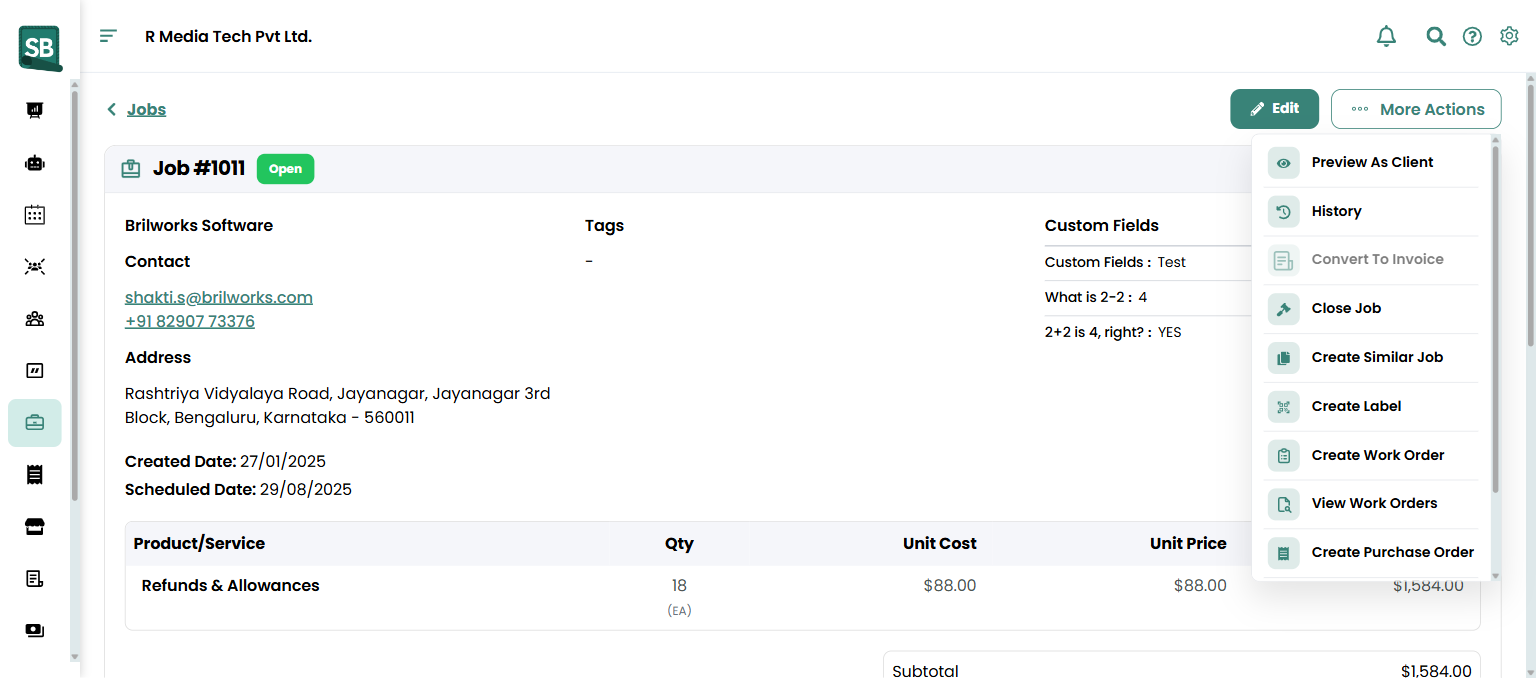
- Click Convert To Invoice at the bottom of the job page, or More Actions → Convert To Invoice in the top-right — both work.
- Review the pre-filled invoice:
- Client and property
- Line items from the job
- Billing totals (subtotal, tax, discount, total)
- Set or confirm the Due Date.
- (Optional) Add any last-minute line items or adjustments.
- Click Save to create the invoice. To send it immediately, click Notify Client and choose Send as email or Send as text.
What happens next
Section titled “What happens next”- A new invoice is created and linked to the job. The job moves to Invoice Pending status until the invoice is paid.
- If you clicked Notify Client, the client gets a message with a link to the public invoice view.
- When the client pays, the invoice is marked Paid and the job moves to Closed automatically.
- If sales commissions are enabled, commission is calculated and recorded on close.
Link notes between job and invoice
Section titled “Link notes between job and invoice”When you create the invoice, you can toggle Link notes to related invoice. With this on, notes added to the invoice also appear on the job (and vice versa). Useful for keeping a single timeline of the client conversation.
Should I always invoice from the job, or sometimes start from scratch?
Invoice from the job whenever there’s a tracked job — line items, client, property, and tax pull through automatically with nothing to retype. Create from scratch only for billing that wasn’t a tracked job (one-off material sales, deposits before any job exists, small repairs you didn’t open a job for).
Can I bill a job in stages?
Yes — create multiple invoices from the same job, one per milestone. Edit the line items each time so each invoice covers only the work being billed for that milestone. Common for big multi-room jobs where you bill per room or per phase.
Do invoice and job stay in sync after I convert?
No. Once the invoice exists, it’s an independent document. Editing line items on the invoice doesn’t change the job, and vice versa. If you adjust pricing on the invoice, the totals on the job will be out of date — most retailers consider the invoice the source of truth from that point forward.
Why didn’t the job close when the invoice was paid?
Auto-close only triggers when the invoice is Paid in full. If it’s Partially Paid, the job stays open. Either record the remaining payment or close the job manually with More Actions → Close Job.
Can I undo an invoice if I created it by mistake?
Yes — delete the invoice. The job reopens and you can create a corrected invoice. If the invoice already has a payment recorded against it, refund or delete that first, then delete the invoice.
When does commission get calculated?
When the linked invoice is marked Paid. The job auto-closes and (if commissions are enabled) the assigned salesperson’s commission is recorded against the paid amount. See Track commission payouts.
Why don’t the totals on the invoice match the job?
Most likely a line item was added or changed after the conversion. Open the invoice and compare line by line. Job and invoice diverge after the invoice is created — the invoice is what the client sees and what your books reflect.