

Set commission rates per employee
A single default rate rarely fits everyone. Senior installers usually earn more than apprentices, sales associates get different rates than the install crew, and top performers may have negotiated a better deal. Service Buddy lets you set a custom rate on any employee that overrides the company default.
Before you start
Section titled “Before you start”Make sure you’ve already done the one-time commission setup in Set up a commission plan. Custom rates only work when the main commission feature is turned on.
Set a custom rate on an employee
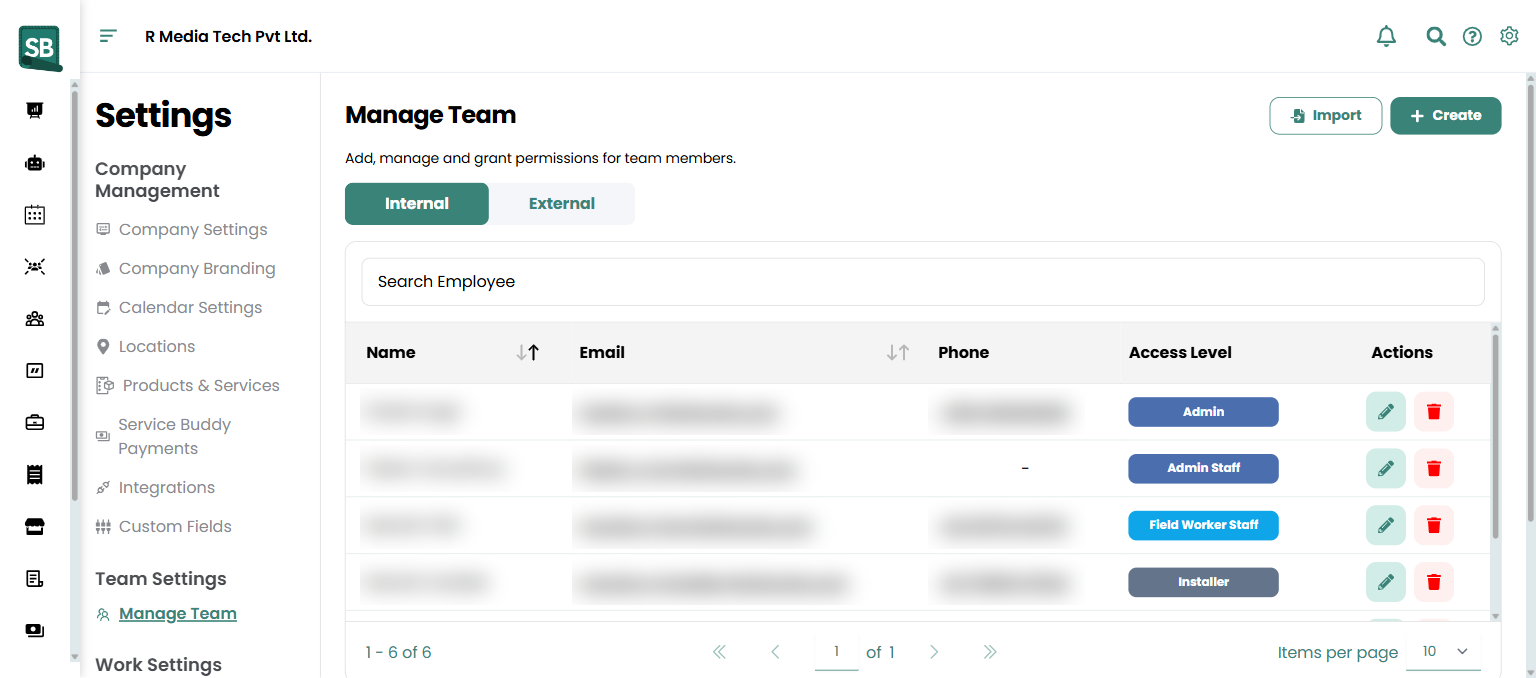
Section titled “Set a custom rate on an employee”- Click Settings → Manage Team (under Team Settings).
- On the Internal tab, find the employee and click the pencil icon to open the Update Employee drawer.
- Scroll to the Commission section and click Manage Commissions.
- Click + Add Rate.
- Enter:
- Rate (%) — for example
7.5for seven and a half percent. - Effective from — the start date. Commissions on work closed before this date keep the previous rate.
- (Optional) Notes — record why you set this rate, such as “promoted to lead installer Jan 2026”.
- Rate (%) — for example
- Click Save.
The employee now earns this rate on every commissionable job they close or get paid on from the effective date forward.
Change or end a rate
Section titled “Change or end a rate”- Open the employee record via Settings → Manage Team → edit icon.
- Click Manage Commissions.
- Find the active rate row.
- Click Edit to change the percentage, or End to stop the custom rate (the employee will fall back to the company default from that date).
- Click Save.
What happens next
Section titled “What happens next”- Service Buddy uses the most specific rate available: employee override first, company default as a fallback.
- The employee’s next earned commission shows the new rate on the Commissions report.
- Historical commissions already recorded are not recalculated. Always set the effective date carefully.
Common patterns
Section titled “Common patterns”Tiered by seniority
- New sales associates: 3%
- Established sales associates: 5%
- Senior sales / lead designers: 7–8%
- Sales managers: 10% (plus override on team sales)
Split by role
- An installer who also closed the job: one rate for install, a separate bonus for the sale. Use notes to document the split.
Temporary promotion
- Set a higher rate with a specific start and end date for a quarterly contest or a new-product push (e.g., a Stainmaster carpet promo, a Coretec LVP push, or a tile-clearance month).
Does setting a per-employee rate override the company default?
Yes — Service Buddy uses the most specific rate available. If the employee has a custom rate, it wins. If they don’t, the company default applies. New employees fall back to the default until you assign a custom rate.
Can I have different commission rates for sales vs install on the same job?
Indirectly. Each employee has one active commission rate at a time, applied to whatever they’re assigned to. If a sales associate gets 7% and an installer gets 2%, both rates apply to the same job’s commissionable amount. For more complex per-line-item splits, contact support.
What happens if I change a rate mid-month?
Existing commissions already calculated stay as they were. The new rate takes effect from the Effective From date you set, going forward. Always pick an effective date that aligns with how you communicate the change to the employee.
Can I set a rate that ends automatically?
Yes — set both a start date and end date when creating the rate. Useful for contest periods, promotional pushes, or temporary promotions. After the end date, the employee falls back to either an earlier rate or the company default.
Can apprentices earn a lower rate than the default?
Yes — set their custom rate below the default (e.g., default 5%, apprentice 3%). They earn at the lower rate on commissionable work until you change it (typically when they’re promoted or hit a milestone).
What if I want to give someone a flat dollar bonus instead of a percentage?
Service Buddy’s commission engine works in percentages. For flat bonuses (sale of the month, perfect-attendance bonus), handle outside the commission report — track them in payroll directly or as a one-off line on their pay.
How do I see the rate currently in effect for an employee?
Open the employee record → Manage Commissions. The active rate (and its effective date) is at the top, with any past rates listed below for history.