

Create a job
A job is a single piece of work you’re doing for a client — one measure, one install, one repair. Creating a job tells your team what needs to be done, where, when, and for how much.
- Click Jobs in the left sidebar.
- Click + Create in the top right.
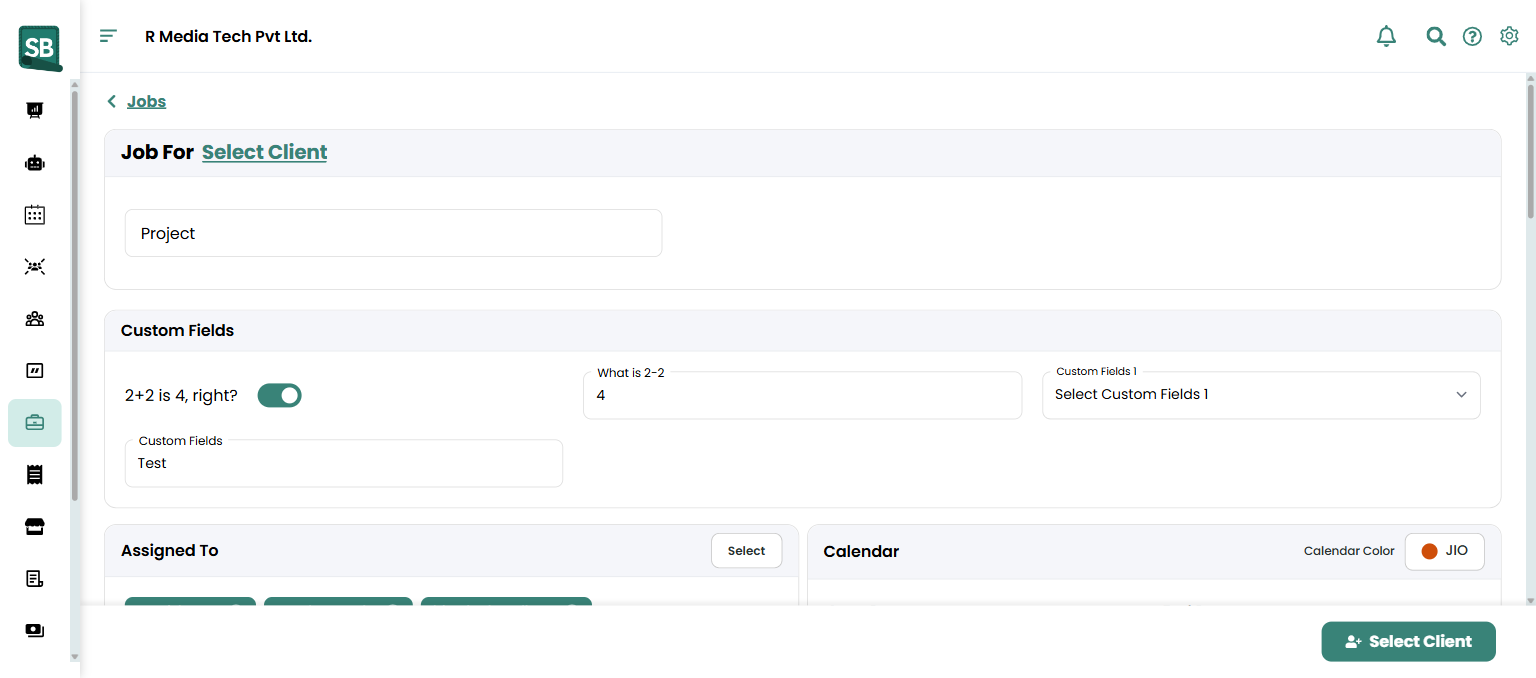
- At the top, click Select Client next to Job For and pick the client. Then pick the install Property (the address where the work happens).
- Enter a Project name — a short description like
Smith — Stair Runner Install,Cohen — Living Room Carpet,Patel — Whole-Home LVP, orGarcia — Master Bath Tile. - In Assigned To, pick one or more installers or measurers. Field Worker Staff and Installer access levels will only see jobs they’re assigned to.
- In the Calendar section on the right:
- Set Start Date, End Date, Start Time, and End Time.
- Tick All Day for jobs that run the whole day, or Schedule Later if you don’t know the timing yet.
- Pick a Calendar Color so the job is easy to spot on the team calendar.
- Scroll to Line Items and click + Add Line Item for each material or labor charge. Toggle each row to Product (pulled from Inventory, stock tracked) or Service (labor offering, no stock). Set Name, Qty, Unit Cost, Unit Price, and Discount per line.
- Review the totals — Subtotal, Discount, tax (rate or group), and Total Amount update automatically.
- (Optional) Add Tags at the bottom (
Stairs,Commercial,Insurance Claim) for filtering. - Click Save at the bottom.
What happens next
Section titled “What happens next”- The new job appears in your Jobs list with status Open.
- If dates are set, it shows on the team calendar.
- Assigned team members can see it in their task list.
- When the work is done, you can create an invoice from the job.
- When the invoice is marked Paid, the job automatically closes and (if enabled) commission is applied to the sales rep.
Job statuses
Section titled “Job statuses”| Status | Meaning |
|---|---|
| Open | Default — active job, not yet complete. |
| Unscheduled | Job has no dates set. |
| Invoice Pending | Work is done; invoice has been created but not yet paid. |
| Closed | Completed and paid. Set automatically when the linked invoice is marked paid. |
What’s the difference between a job and a quote?
A quote is what you send to the client for pricing approval. A job is the actual work — once approved (or for repeat clients who don’t need a quote), it goes on the schedule, gets assigned to a crew, and is what your team actually executes. Many flooring jobs flow from quote → job → invoice; some skip the quote (small repairs, repeat work) and start at the job.
Should I always set dates when creating a job?
No. If you’ve sold the work but the install date isn’t confirmed yet, check Schedule Later and add dates when the install team coordinates with the client. Open jobs without dates show up as Unscheduled and stay easy to find.
What does “Assigned To” do?
It assigns the job to one or more team members (typically an installer or measurer). Assigned employees see the job on their calendar and dashboard. If their access level is Field Worker Staff (measurers) or Installer (install crews), they only see jobs they’re assigned to — useful for keeping crews focused on their own work.
Do I need line items if I already sent a quote?
If you converted from a quote, line items carry across automatically — no need to retype. If you’re creating a job from scratch (a repeat client, a small repair), add line items now or wait and add them on the invoice. Adding them on the job means the invoice can be created with one click later.
What does each job status mean?
- Open — active job, not yet complete (the default).
- Unscheduled — no dates set yet.
- Invoice Pending — work is done, invoice generated, but not yet paid.
- Closed — completed and paid; auto-set when the linked invoice is marked paid.
Can I delete or cancel a job?
Yes — open the job and use the delete control. If the job has a linked invoice or payment, those need to be handled first (delete or refund). For a job the client cancels before any work, deleting is fine; for a job that was started and abandoned, consider invoicing for completed work and closing.
Why don’t my totals look right?
Most often it’s a tax-rate mismatch (the property’s tax rate isn’t applying as expected) or a line-item discount that wasn’t intended. Open each line item and check Qty × Unit Price, Discount, and the Exempt From Tax checkbox. The summary recalculates automatically — if it still seems off, refresh the page.
I can’t find the client when creating a job — why?
The client probably doesn’t exist yet, or you’re searching with the wrong spelling. Create the client first, then come back and create the job.