

Create a custom field
Service Buddy ships with all the standard fields most flooring retailers need — but no template fits everyone. Custom fields let you capture the extras that matter for your business: gate codes, preferred installer, room dimensions, referral source, you name it.
This article covers creating a custom field. Picking the right field type and controlling where it appears are covered in their own articles.
Before you start
Section titled “Before you start”Decide two things:
- What are you capturing? Give it a plain, clear name like “Gate Code” or “Preferred Arrival Window.”
- What type of data is it? Text, Multi-Line Text, a Number, a Dropdown, a True/False toggle, or an Address. See Choose the right custom field type if you’re unsure.
The module (which record type the field attaches to) is determined by which tab you’re on when you create the field — there is no separate module dropdown in the form.
Create the custom field
Section titled “Create the custom field”- In the left sidebar, click Settings.
- Under Company Management, click Custom Fields.
- Click the tab for the module you want the field on: Quote, Job, Invoice, Product, Service, Line Item, or Purchase Order.
- Click + Create.
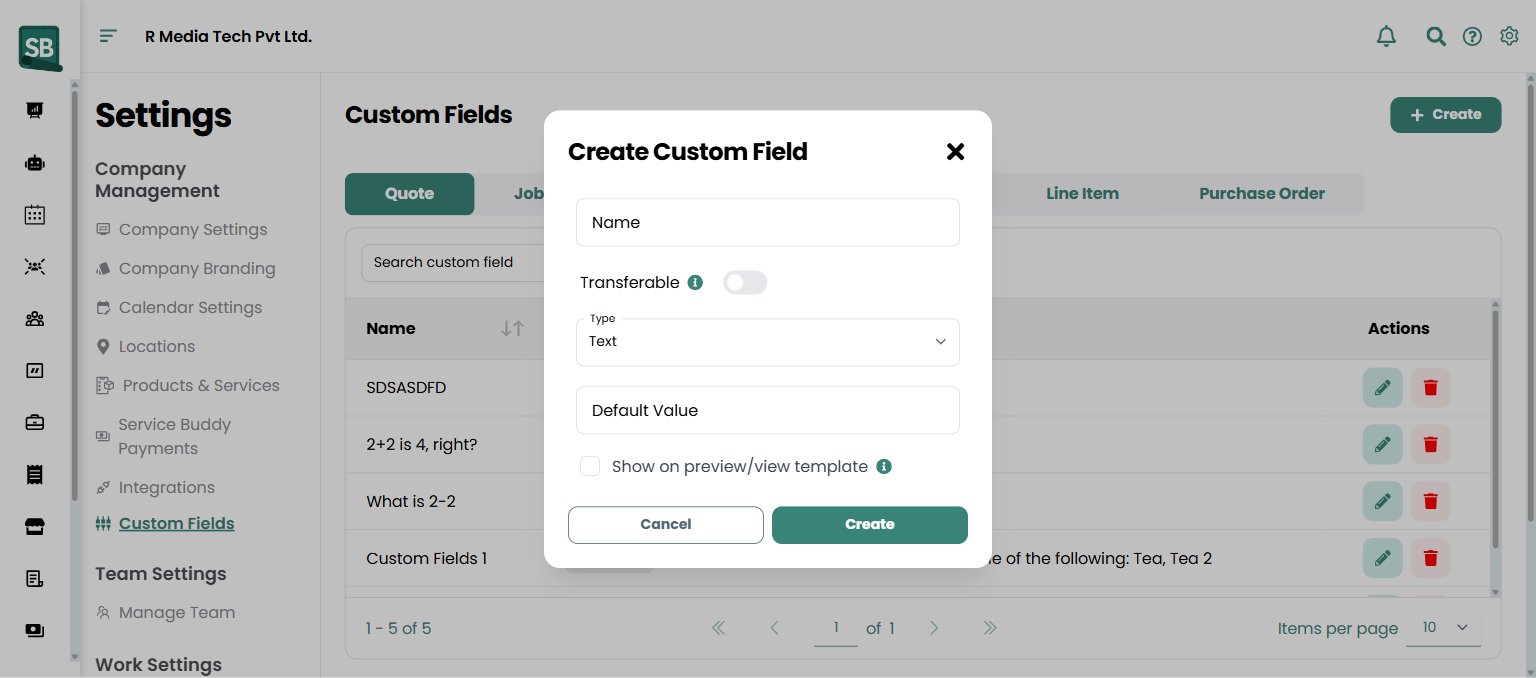
- Fill in the form:
- Name — what the label will say on the form, for example
Gate Code. - Type — Text, Multi-Line Text, Number, True/False, Dropdown, or Address.
- Default Value (optional) — pre-fills new records with this value.
- Name — what the label will say on the form, for example
- (Optional) Toggle Transferable if the value should carry over when a quote becomes a job or a job becomes an invoice. This keeps you from retyping the same information three times.
- (Optional) Check Show on preview/view template if you want this field to appear on PDF previews and printed templates that go to clients.
- Click Create.
What happens next
Section titled “What happens next”- The new field immediately appears on every matching form — open a client or create a new job and you’ll see it in the Custom Fields section.
- Values filled in on existing records carry forward from now on. Older records simply have the field left blank until someone fills it in.
- You can filter and search on custom field values in any list view. For example, filter clients by “Gate Code is not empty” or jobs by “Priority equals High.”
Edit or delete a custom field
Section titled “Edit or delete a custom field”- Go back to Settings → Custom Fields (under Company Management).
- Click the tab for the module the field belongs to.
- Find the field in the list.
- Click the pencil icon to rename it or toggle settings.
- Click the trash icon to remove the field. Historical data stays on old records but the field no longer appears on new ones.
What kinds of things should I make custom fields for?
Anything Service Buddy doesn’t track by default that matters to your business. Common flooring examples: Gate Code, Preferred Installer, Stair Count, Furniture Move Required, Subfloor Type, Pet on Premises, Referral Source, Sample Returned, Mill Order Number. Look at the questions you ask every install client, then turn them into structured fields.
What’s the “module” — where does the field actually appear?
The module is the type of record the field attaches to: client, job, quote, invoice, product, service, line item, or purchase order. You pick it by clicking the tab in Settings → Custom Fields before clicking Create. Each module has its own set of custom fields.
What does Transferable do?
When a custom field is Transferable, its value carries forward as a record evolves: quote → job → invoice. So if you capture Preferred Arrival Window on the quote, it auto-fills on the job and the invoice without anyone retyping. Always toggle Transferable for fields that describe the client or property (these don’t change), not for fields that describe the work (these often do).
Can I remove a dropdown option later?
Yes, but carefully — existing records that used the removed option keep their old value displayed (they don’t get blanked out). Adding options is safe; removing them is fine for new records but won’t clean up history.
Can I filter records by a custom field value?
Yes — every list view (clients, jobs, invoices, etc.) supports filtering by custom field values. Useful for things like “show me jobs where Furniture Move Required = Yes” so dispatch knows which jobs need extra hands.
Will custom fields appear on the client-facing PDF?
Only if you toggle Show on preview/view template on the field. By default, custom fields are internal-only. See Show custom fields on PDFs and templates.
What happens if I delete a custom field?
The field stops showing on new records. Historical data on past records is retained but no longer surfaced through the field — it’s still in the database for audit purposes. If you need the field back, recreate it with the same name and the historical values reconnect on subsequent edits.
How many custom fields can I have?
There’s no hard cap, but very long lists make forms unwieldy. Most retailers find 5–10 custom fields per module is the sweet spot — enough to capture what’s important, few enough that staff actually fill them in.